Introduction
If you’re a Telugu content creator, you already know how powerful captions and stylish fonts can make your video stand out. Whether you’re editing a short film, a YouTube vlog, or a funny Instagram reel — adding Telugu text in CapCut instantly gives your video a regional and emotional touch.
But here’s the problem — CapCut doesn’t have built-in Telugu fonts by default. Most people don’t even know how to import or use Telugu fonts correctly. Don’t worry, mama! In this guide, we’ll show you how to add Telugu fonts in CapCut step-by-step, how to download Telugu font files, and how to make your Telugu text look cinematic and professional.
Let’s get started!
Why Use Telugu Fonts in CapCut?
Before jumping into the steps, let’s understand why adding Telugu fonts matters for your content:
- 🎥 Local Language Appeal: Telugu videos connect emotionally with local audiences. People love seeing their language on screen.
- 🌍 More Engagement: Telugu titles or dialogues grab more attention on reels, YouTube Shorts, and TikTok.
- 💰 High RPM Advantage: Regional content (especially Telugu) gets better audience retention — which can increase ad revenue.
- ✨ Professional Look: Using unique Telugu fonts makes your video look more cinematic and personalized.
- 🔠 Brand Identity: If you run a creative page or YouTube channel, custom Telugu fonts help you build a strong brand identity.
Step-by-Step: How to Add Telugu Fonts in CapCut
Let’s move into the main tutorial. You don’t need any advanced tools — just your phone, CapCut app, and a Telugu font file.
Step 1: Download a Telugu Font File (TTF or OTF Format)
CapCut supports custom fonts in .TTF or .OTF format. So the first step is downloading a Telugu font from a trusted site.
Here are some free Telugu font sources:
- Google Fonts
- All Telugu Fonts
- DaFont
- 1001 Free Fonts
Search for terms like “Telugu Stylish Font” or “Telugu Unicode Font” and download your favorite one. Some popular Telugu fonts are:
- Pothana2000
- Gautami
- Vemana2000
- NTR Telugu Font
- Mallanna Font
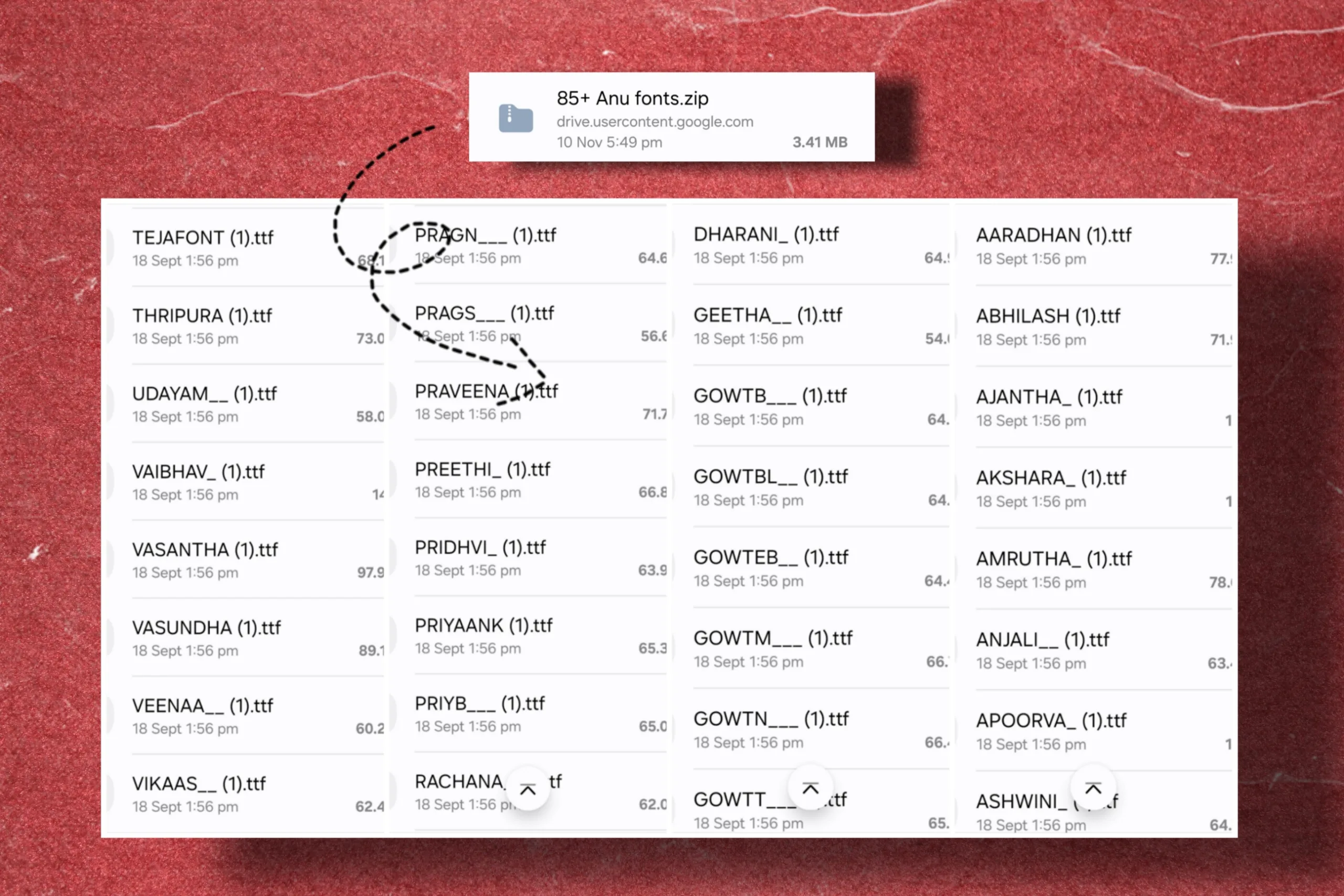
Once downloaded, extract the .zip file if needed — you’ll get a .ttf font file.
Step 2: Add the Font to Your Phone Storage
- Open File Manager
- Locate your Telugu font file
- Remember the exact location (you’ll import it into CapCut soon)
- Save it in Files → On My iPhone → CapCut Fonts Folder (or Documents)
Step 3: Open CapCut and Add a Text Layer
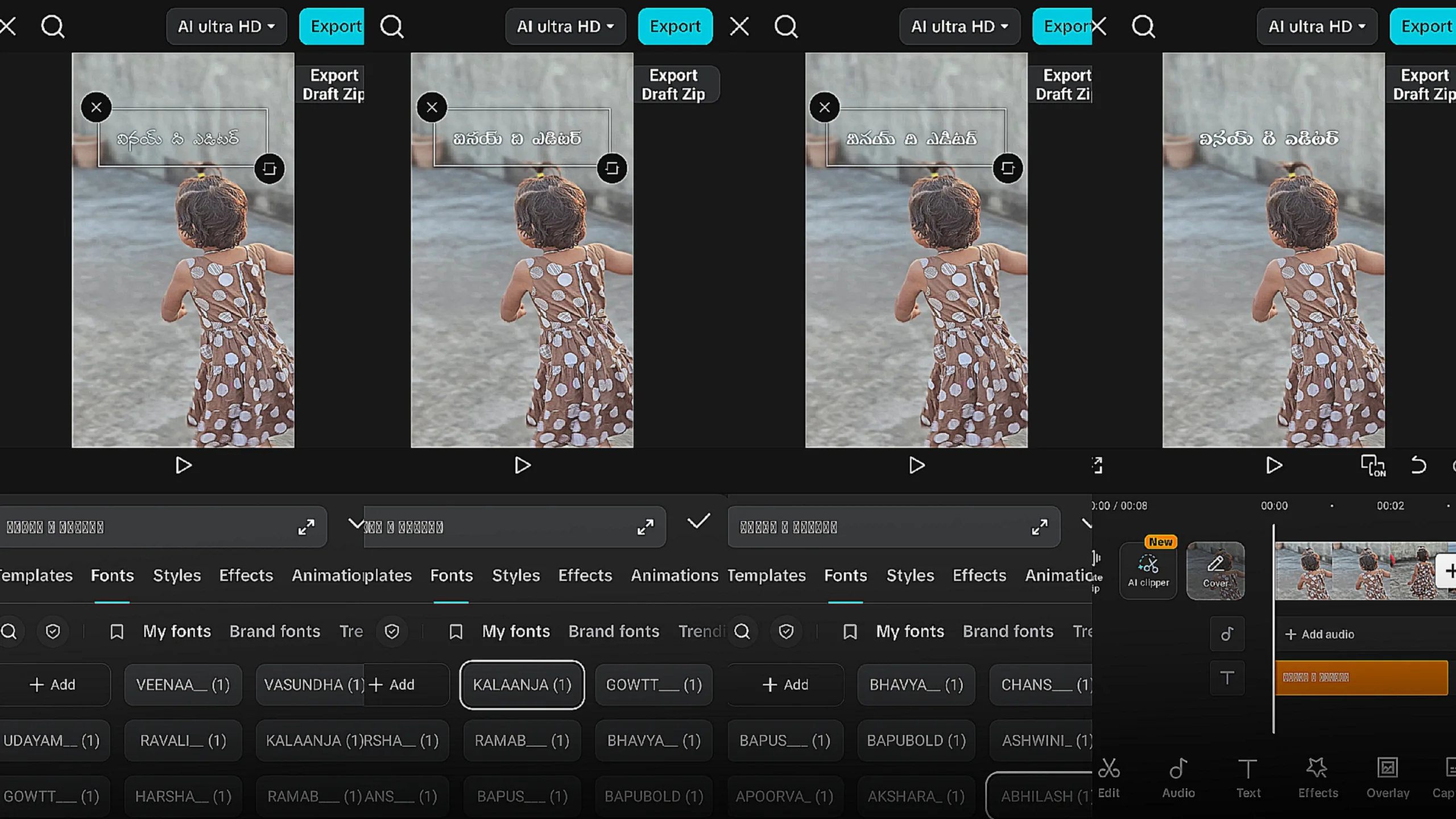
- Tap Text → Add Text
- Type your Telugu sentence. (Don’t worry if it looks incorrect now; we’ll fix it soon!)
- Go to Font → + Add Font
Step 4: Import the Telugu Font into CapCut
- Select the Telugu font file.
- CapCut will automatically import and install it.
- Once done, you’ll see it in the My Fonts section.

Boom! You just added a custom Telugu font to CapCut. 🎉
Step 5: Type in Telugu Text Correctly
If you try typing Telugu letters directly on your English keyboard, it won’t work properly. You need to use a Telugu keyboard app.
Here are some options:
- Google Indic Keyboard (Gboard)
- Swarachakra Telugu Keyboard
- Lipikaar Keyboard
Install one of these from the Play Store → Enable Telugu typing → Type your text in Telugu script.
Now, copy-paste that Telugu text into CapCut’s text box. You’ll see it appear perfectly with your chosen font style!
Bonus Tip: Add Telugu Fonts from PC to Mobile
If you’re editing on CapCut PC (or transferring fonts from laptop to mobile):
- Download the Telugu font on your computer.
- Transfer it via Google Drive or Send Anywhere app.
- Download the file on your phone.
- Import it in CapCut just like above.
This method is useful when you find stylish fonts online that are easier to download on desktop.

How to Make Telugu Text Look Cinematic
- Add Shadow & Stroke:
Go to Text Style → Enable Shadow for depth, and Stroke for clarity. - Use Motion Animations:
Try “Fade In”, “Typewriter”, or “Zoom” animations for Telugu titles. - Color Grading:
Match text color with your video tone. For example, gold text on dark background looks premium. - Text Background:
Add a semi-transparent background layer for clarity on bright clips. - Combine with BGM:
Sync Telugu text with beats or dialogues for better impact.
FOR IOS
Common Problems & Fixes
❌ Telugu Font Not Showing Properly?
❌ Font Not Importing in CapCut?
❌ Telugu Letters Breaking?
Where to Find the Best Telugu Fonts (Free + Premium)
- Google Fonts Telugu Section – Clean and compatible with most apps.
- TeluguFonts.net – Wide range of Telugu handwriting and stylish fonts.
- Creative Market / Envato Elements – Premium Telugu fonts for professional projects.
- VinayTheEditor Font Pack (if you plan to release your own font pack) – A curated pack of stylish Telugu fonts for editors.